





You already know why remarketing matters: it brings back the 97% of visitors who leave without converting, at a fraction of the cost of cold traffic. But knowing why is different from knowing how. The actual setup involves Google Tag Manager, audience segments, campaign types, and privacy compliance, and getting any one of those wrong means your ads either never run or burn budget on the wrong people.
This tutorial walks you through how to set up Google remarketing ads from scratch, step by step. We will cover the Google tag installation via GTM, building audiences in both Google Ads and GA4, launching your first Display remarketing campaign, layering in RLSA for Search, configuring dynamic remarketing for e-commerce, and handling PDPA compliance with Consent Mode v2. Everything is based on real setups we have done for Singapore businesses, not theory from a help article.
If you are new to Google Ads entirely, read our Google Ads guide for Singapore SMEs first. This tutorial assumes you have an active Google Ads account and a live website.
Step 1: Install the Google tag via Google Tag Manager
Remarketing starts with a tag on your website. The tag drops a cookie in each visitor's browser so Google can recognise them later across the Display Network, YouTube, and Search. The cleanest way to install it is through Google Tag Manager (GTM), which keeps all your tracking code in one place and lets you add or modify tags without touching your website code.
Create a GTM container (if you do not have one)
- Go to tagmanager.google.com and click Create Account.
- Enter your company name, select Singapore as the country, and choose Web as the target platform.
- GTM gives you two code snippets. Paste the first in the
<head>of every page and the second immediately after the opening<body>tag. If you use a CMS like WordPress, a plugin such as Insert Headers and Footers makes this straightforward. For Astro, Gatsby, or Next.js sites, add the snippets to your base layout component.
Add the Google Ads remarketing tag
- In GTM, click Tags > New.
- Select Google Ads Remarketing as the tag type.
- Paste your Conversion ID (find this in Google Ads under Tools > Audience Manager > Your data sources > Google Ads tag > Tag setup).
- Set the trigger to All Pages so the tag fires on every page load.
- Click Save, then Submit to publish.
Verify the tag is working
Use GTM's Preview mode to visit your site. You should see the remarketing tag fire on every page. Then open Google Ads and go to Audience Manager > Your data sources. Within a few hours, the tag status should show as Active with data being received.
Pro tip: Install the tag even if you are not ready to run campaigns yet. It starts building your audience immediately at no cost. By the time you launch your first remarketing campaign, you will already have a pool of visitors to target. The minimum audience size is 100 users for Display and 1,000 for Search (RLSA), so early installation gives you a head start.
If you also need GA4 set up, our Google Analytics 4 guide covers the full installation process. Both tags can live side by side in GTM without any conflicts.
Step 2: Build remarketing audiences in Google Ads
With the tag installed, you need to tell Google which visitors to follow and for how long. This is where audience segmentation makes or breaks your remarketing performance. A single "all visitors" list is the most common mistake we see when auditing accounts, and it wastes budget on low-intent traffic.
Create audience segments in Google Ads
- In Google Ads, navigate to Tools > Shared library > Audience Manager.
- Click the + button and select Website visitors.
- Define your segment rules. Here are four segments we create for virtually every Singapore business:
Segment 1: All visitors (30 days)
Rule: Visited any page. Membership duration: 30 days. This is your broadest pool and works well for general awareness. Use it for top-of-funnel messaging like brand introductions or educational content.
Segment 2: Service or product page viewers (14 days)
Rule: URL contains /services/ or /products/. Duration: 14 days. These visitors showed buying intent by looking at what you actually sell. They deserve more direct messaging with a clear call to action.
Segment 3: Cart or form abandoners (7 days)
Rule: Visited the cart/checkout page or quote form but did not complete a conversion. Duration: 7 days. This is your hottest segment. A small incentive (free consultation, 10% off, free delivery) can push them over the line. For Singapore service businesses, form abandoners are gold because they were moments away from enquiring.
Segment 4: Past converters (180 days, exclude from acquisition)
Rule: Completed a purchase or form submission. Duration: 180 days. Use this segment in two ways: exclude it from your acquisition campaigns (so you stop paying to acquire someone who already converted), and target it separately with upsell or repeat purchase messaging.
Build audiences in GA4 (and import to Google Ads)
GA4 audiences give you richer behavioural targeting because GA4 tracks engagement metrics that the Google Ads tag does not, such as scroll depth, session duration, and specific event triggers.
- In GA4, go to Admin > Data display > Audiences and click New audience.
- Use the Custom option to build segments based on conditions like:
session_duration > 60 seconds,page_views > 3, orevent = add_to_cart. - Set your membership duration (7 to 90 days depending on your sales cycle).
- Ensure your GA4 property is linked to your Google Ads account: Admin > Product links > Google Ads links. Once linked, any audience you create in GA4 automatically appears in your Google Ads Audience Manager within a few hours.
We recommend using GA4 audiences as your primary source because the behavioural filters are more powerful. The Google Ads tag-based audiences serve as a reliable fallback for any visitors your GA4 tracking misses (ad blocker users, consent denials, etc.).
Understanding your baseline conversion rate is essential here, because it determines how aggressively you should target each segment and how much you can afford to bid.
Step 3: Launch a Display remarketing campaign
Display remarketing is the classic format: your banner ads follow past visitors across two million+ websites and apps in the Google Display Network. Here is exactly how to set it up.
Create the campaign
- In Google Ads, click Campaigns > + New campaign.
- Select your goal. For remarketing, Sales or Leads works best (avoid "Website traffic" as it optimises for clicks, not conversions).
- Choose Display as the campaign type.
- Name the campaign clearly, for example "Remarketing - Display - All Visitors 30d".
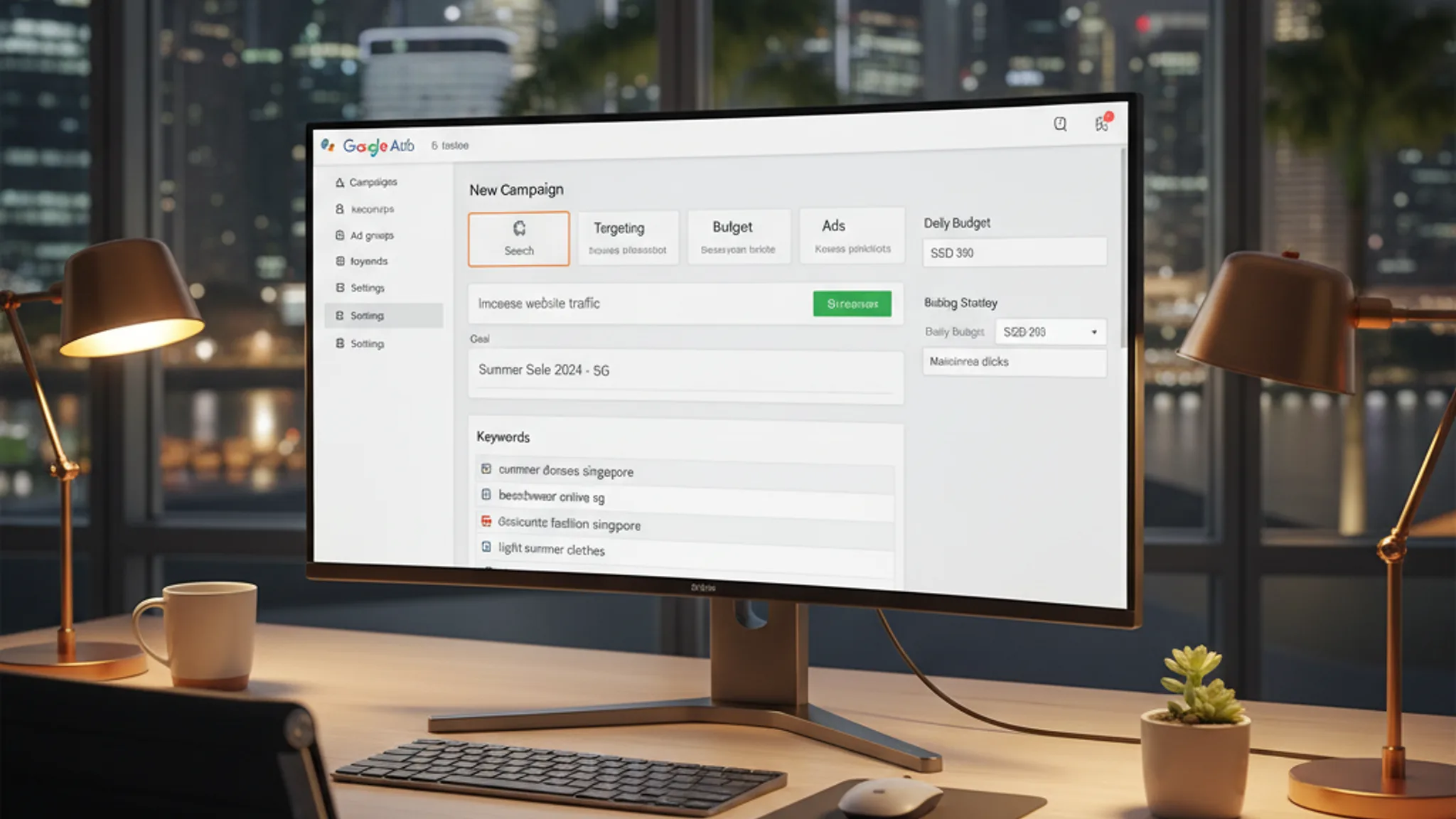
- Set your daily budget. For Singapore SMEs, we typically recommend starting at S$15 to S$30 per day per audience segment. That is roughly S$450 to S$900 per month, a fraction of what you spend on Search.
- Set bidding to Maximise conversions or Target CPA if you have enough conversion data (at least 15 to 30 conversions in the past 30 days).
Add your audience segments
- In the Audiences section, switch to Browse and select How they have interacted with your business.
- Choose the remarketing lists you created in Step 2. Start with your "Service page viewers (14 days)" segment for the best balance of volume and intent.
- Critically, add your "Past converters" list as an exclusion. This prevents you from spending money showing acquisition ads to people who already became customers.
Create responsive display ads
Google's responsive display ads automatically test combinations of your assets, so upload plenty of options:
- Headlines: 3 to 5 variations, each under 30 characters. Lead with value ("Free consultation", "Save 20% this week").
- Long headlines: 1 to 2, up to 90 characters. Include your differentiator.
- Descriptions: 2 to 4, up to 90 characters each. Address objections or highlight trust signals ("500+ SMEs served", "Rated 4.9/5").
- Images: Upload at least 3 landscape (1200x628) and 3 square (1200x1200) images. Use real photos of your work, not generic stock. For Singapore audiences, localised imagery performs noticeably better.
- Logo: Upload your logo in both landscape and square formats.
Set frequency caps and placement exclusions
Go to Settings > Additional settings > Frequency capping and set a cap of 3 to 5 impressions per day per user. Without this, Google will show your ads as often as possible, and your audience will feel stalked rather than reminded.
Under Placements > Exclusions, exclude mobile app placements (adsenseformobileapps.com) and any low-quality sites you spot in your placement reports. Mobile apps are notorious for accidental clicks that consume budget without delivering real engagement.
Recommended reads
Step 4: Set up RLSA (Remarketing Lists for Search Ads)
RLSA is the most underused remarketing feature we see in Singapore Google Ads accounts, yet it consistently delivers the highest conversion rates. The concept is simple: when someone who previously visited your website searches for your keywords again, you bid more aggressively because you already know they are interested.
How to configure RLSA
- Open an existing Search campaign (or create a new one dedicated to RLSA).
- Go to Audiences and click Edit audience segments.
- Add your remarketing lists, but change the setting to Observation (not Targeting). Observation means your ads still show to everyone searching your keywords, but you can set bid adjustments for past visitors.
- Set a bid adjustment of +30% to +50% for your remarketing audience. This tells Google you are willing to pay more to appear at the top when a past visitor searches again. For high-value keywords where CPCs in Singapore can reach S$6 to S$8, that extra bid often makes the difference between position 1 and position 4.
RLSA-only campaigns
For an even more targeted approach, create a separate campaign that uses Targeting mode instead of Observation. This campaign only shows ads to past visitors, which means you can:
- Bid on broader keywords you would normally avoid (e.g. "web design" instead of "web design Singapore") because you know the searcher has already visited your site.
- Write ad copy that references their previous visit: "Still looking for a web designer? Book your free consultation today."
- Allocate a separate budget specifically for recapturing high-intent visitors.
Minimum audience requirement: RLSA requires at least 1,000 active users in your remarketing list. If your site gets fewer than 1,000 visitors per month, it may take several weeks to build a large enough pool. This is another reason to install the remarketing tag early.
In our experience, RLSA campaigns for Singapore SMEs typically see 2 to 3x higher conversion rates compared to the same keywords targeting cold traffic, at only a marginally higher CPC.
Step 5: Configure dynamic remarketing for e-commerce
If you sell products online, dynamic remarketing is where the real money is. Instead of showing a generic brand ad, Google automatically generates ads featuring the exact products each visitor viewed, complete with images, prices, and a direct link back to the product page. The relevance is unmatched, and the conversion rates reflect it.
Prerequisites
- Google Merchant Center account with an active product feed. Your feed must include product IDs, titles, images, prices, and availability. If you run a Shopify store, the Google & YouTube channel app syncs your catalogue automatically.
- Dynamic remarketing tag that passes product IDs to Google. When a visitor views a product, the tag sends that product's ID so Google knows which items to show in the ad.
Set up the dynamic remarketing tag in GTM
- In GTM, create a new Google Ads Remarketing tag.
- Tick the box Send dynamic remarketing event data.
- Set the Event name to match the page type. Google uses standard event names:
view_itemfor product pages,add_to_cartfor cart additions, andpurchasefor completed orders. - Map the Event value and Event items parameters. The items array must include
id(matching your Merchant Center product ID),google_business_verticalset toretail, and optionallypriceandquantity. - Create GTM triggers for each page type: product pages, cart pages, and the order confirmation page.
- Publish your GTM container.
Create the dynamic remarketing campaign
- In Google Ads, create a new Display campaign with the Sales goal.
- Under Campaign settings, enable the option to use your product feed from Merchant Center.
- Add your remarketing audiences (product viewers, cart abandoners).
- Google will auto-generate responsive ads that pull product images, titles, and prices directly from your feed. You can customise the layout, colours, and call-to-action text to match your brand.
Results to expect: We have seen Singapore e-commerce stores achieve 4 to 6x ROAS on dynamic remarketing campaigns because the ads are hyper-relevant. A visitor who looked at a specific pair of running shoes sees that exact shoe following them around the web. That level of personalisation is hard to ignore.
If you are running an online store and not using dynamic remarketing, you are leaving the easiest conversions on the table. The setup takes an afternoon, but it pays dividends every day afterwards.
PDPA compliance and Consent Mode v2
Running remarketing in Singapore means complying with the Personal Data Protection Act (PDPA). Tracking cookies collect personal data, and the PDPC can impose fines of up to S$1 million or 10% of annual turnover. Here is what you need to do, and how Consent Mode v2 fits in.
Cookie consent requirements
- Display a cookie consent banner before remarketing tags fire. The banner must clearly state that your site uses marketing cookies for advertising purposes and give visitors the option to accept or decline.
- Update your privacy policy to explain what remarketing cookies you use, what data they collect, how long cookies persist, and how visitors can opt out. Reference Google Ads remarketing specifically.
- Provide an opt-out mechanism: link to Google's Ad Settings page and allow visitors to withdraw consent at any time.
Implementing Google Consent Mode v2
Google now requires Consent Mode v2 for all advertisers, and it is especially relevant for remarketing because it controls whether tracking cookies fire based on user consent. Here is how to implement it:
- Choose a Google-certified Consent Management Platform (CMP). Popular options in Singapore include Cookiebot, CookieYes, and OneTrust. Most offer free tiers for small sites.
- Install the CMP via GTM. The CMP provides a GTM template that handles the consent banner display and communicates the user's choice to Google tags.
- In GTM, update your Google Ads remarketing tag to use Built-in consent. Set
ad_storageto require consent. This means the remarketing tag will only drop cookies after the visitor clicks "Accept". - Set default consent state: in your GTM container, add a Consent Initialization tag that sets
ad_storage: deniedandanalytics_storage: deniedas defaults for Singapore visitors. The CMP updates these to "granted" when the user consents.
What happens when users decline consent?
With Consent Mode v2, Google still receives cookieless pings when consent is denied. These anonymised signals allow Google's machine learning models to estimate conversions and fill gaps in your remarketing audiences, without violating privacy. You lose some precision, but not all of it.
In practice, we see consent rates of 70 to 85% on Singapore websites when the banner is clear and non-intrusive. That means the vast majority of your visitors still enter your remarketing audiences.
WhatsApp retargeting: a Singapore-specific angle
Many Singapore businesses collect leads through WhatsApp rather than web forms. You cannot directly retarget WhatsApp conversations with Google Ads, but here is a workaround: route WhatsApp enquiries through a landing page first. Instead of sharing your phone number directly, link to a page like yoursite.com/whatsapp that fires the remarketing tag before redirecting to your WhatsApp chat. Now that visitor is in your remarketing audience, and you can follow up with Display and Search ads even if the WhatsApp conversation goes cold.
Optimisation tips from real Singapore campaigns
Getting the setup right is step one. Making it profitable is step two. Here are the optimisation moves that consistently improve results across the Singapore remarketing campaigns we manage.
Layer audiences by recency and intent
Not all visitors are equal. Someone who visited your site 3 days ago is far more likely to convert than someone from 25 days ago. Create overlapping audience segments with different bid adjustments:
- 0 to 7 days: highest bids (hottest intent)
- 8 to 14 days: moderate bids
- 15 to 30 days: lower bids
- 31 to 90 days: lowest bids (awareness only)
This mirrors how intent decays over time and prevents you from spending the same amount on someone who visited yesterday as someone who visited six weeks ago.
Refresh ad creatives every 2 to 3 weeks
Ad fatigue hits remarketing harder than any other campaign type because you are showing ads to the same small group repeatedly. Swap out images, headlines, and offers on a regular cycle. We keep a creative calendar for every remarketing account we manage.
Exclude low-quality placements aggressively
Check your placement reports weekly during the first month. You will find that mobile game apps, parked domains, and made-for-advertising sites consume a disproportionate share of impressions. Exclude them individually or add category exclusions for Games, Parked domains, and Below-the-fold placements in your campaign settings.
Use audience insights to refine targeting
Google Ads provides demographic and interest data about your remarketing audiences. Use this to identify patterns. If 60% of your converters are aged 25 to 34, consider increasing bids for that age group and decreasing for others. If a particular affinity segment over-indexes, layer it as an additional targeting signal.
Connect remarketing to your broader strategy
Remarketing works best when it is not isolated. Here is how it fits into a complete Google Ads funnel:
- Top of funnel: Search campaigns and SEO drive fresh visitors to your site.
- Middle of funnel: Display remarketing keeps your brand visible while they compare options.
- Bottom of funnel: RLSA recaptures them when they search again, and dynamic remarketing brings back product viewers.
- Post-conversion: Customer Match campaigns drive upsells and referrals.
Pair your remarketing campaigns with strong conversion rate optimisation on your landing pages. There is no point paying to bring visitors back if the page they land on still does not convert. Every percentage point improvement in your landing page conversion rate makes your remarketing budget go further.
Quick-reference setup checklist
Here is a summary checklist you can follow when setting up remarketing for your Singapore business:
- Install GTM on every page of your website (if not already done).
- Add the Google Ads remarketing tag in GTM with your Conversion ID. Fire it on All Pages.
- Set up Consent Mode v2 with a certified CMP. Default
ad_storageto "denied" for Singapore visitors. - Create 4 audience segments in Google Ads: all visitors (30d), service/product viewers (14d), cart/form abandoners (7d), and past converters (180d).
- Build GA4 audiences based on engagement signals (session duration, page views, events) and link GA4 to Google Ads.
- Launch a Display remarketing campaign with responsive ads, S$15 to S$30/day budget, frequency cap of 3 to 5 per day, and mobile app exclusions.
- Add RLSA to your Search campaigns with +30 to 50% bid adjustments on your remarketing audience. Consider a dedicated RLSA-only campaign for broader keywords.
- Set up dynamic remarketing (e-commerce only): connect Merchant Center, install the dynamic remarketing tag with product IDs, and create a feed-linked Display campaign.
- Exclude past converters from all acquisition campaigns. Target them separately for upselling.
- Update your privacy policy and cookie banner to mention remarketing cookies and provide an opt-out mechanism.
Work through this list from top to bottom. Steps 1 to 5 can be completed in a single afternoon. The campaigns (steps 6 to 9) take another hour or two each. The compliance steps should be done before you launch any ads.
Setting up Google remarketing ads is not complicated, but it does require attention to detail. A misconfigured tag means no audience data. Poorly segmented audiences mean wasted budget. Missing consent controls put you on the wrong side of Singapore's PDPA. Get the foundations right, and remarketing becomes the most cost-effective part of your entire Google Ads account.
The sequence matters: tag first, audiences second, campaigns third, compliance throughout. Start with Display remarketing for broad reach, add RLSA to recapture high-intent searchers, and layer in dynamic remarketing if you sell products online. Optimise by refreshing creatives, excluding bad placements, and layering audiences by recency.
If this feels like a lot to manage on top of running your business, it is. Remarketing setup is straightforward for someone who does it regularly, but it is easy to make expensive mistakes on your first attempt. Our Google Ads team can handle the entire setup and ongoing management so you can focus on what you do best. Get a free quote and we will walk you through exactly what your remarketing funnel should look like.
Sources & References (6)
- https://support.google.com/google-ads/answer/2453998
- https://support.google.com/google-ads/answer/3210317
- https://support.google.com/analytics/answer/9267735
- https://support.google.com/google-ads/answer/6379332
- https://www.pdpc.gov.sg/overview-of-pdpa/the-legislation/personal-data-protection-act
- https://developers.google.com/tag-platform/security/guides/consent

Written by
Terris
Founder & Lead Strategist
Terris has over 8 years of experience running Google Ads campaigns for Singapore businesses. He has set up remarketing funnels for e-commerce stores, service firms, and B2B companies, turning lost visitors into paying customers.
Want to see these strategies in action? Browse our portfolio or get in touch to discuss your project.